OpenWrt Virtualization: Running QEMU/KVM on OpenWrt
First, complete the basic environment installation according to the Reference Document:
You need the following packages on your device: kmod-tun, qemu-bridge-helper. Depending on the guest architecture, install qemu-x86_64-softmmu or qemu-arm-softmmu. If your hardware supports it, also install kmod-kvm-amd or kmod-kvm-intel for better performance.
Example for an Intel system and a x86_64 guest:
opkg install kmod-tun qemu-bridge-helper qemu-x86_64-softmmu kmod-kvm-intelAfter the first installation, reboot your device.
Download the system image in advance and determine the virtual disk directory. In this article, the two paths are:
- System image:
/appdata/vm/debian-13.3.0-amd64-DVD-1.iso - Virtual disk directory:
/appdata/vm/vm-main
Create the virtual disk file:
qemu-img create -f qcow2 /appdata/vm/vm-main/debian.qcow2 120G
Where 120G is the maximum space the virtual disk can occupy. This size is not immediately used up but will gradually be occupied based on actual usage. Therefore, you can assign a relatively large value to it, but be sure to ensure that this size is smaller than the disk partition size where it is located.
Next, start installing the system. Use the following command to boot the virtual machine from the image file:
qemu-system-x86_64 \
  -enable-kvm \
  -cpu host \
  -m 12G \
  -smp 3 \
  -drive file=/appdata/vm/vm-main/debian.qcow2,if=virtio \
  -cdrom /appdata/vm/debian-13.3.0-amd64-DVD-1.iso \
  -boot order=dc \
  -netdev bridge,id=net0,br=br-lan \
  -device virtio-net-pci,netdev=net0 \
  -vnc :1 \
  -monitor stdio
Parameter Explanation:
-enable-kvm: Enable KVM acceleration, which is critical for performance.-cpu host: Directly use the host machine's CPU features for optimal performance.-m 12G: Allocate 12GB of memory. This memory is allocated immediately and will not be dynamically released, so careful planning of memory size is required. Ensure sufficient memory is reserved for the OpenWrt host system.-smp 3: Allocate 3 CPU cores. It is recommended to reserve one core for OpenWrt.-drive file=...: Path to the virtual disk file.-cdrom ...: Path to the ISO system image file.-boot order=dc: Boot order, where drepresents the hard disk, and crepresents the optical drive. Here, it is set to first attempt booting from the optical drive (for system installation).-netdev bridge,id=net0,br=br-lan: Bridge to OpenWrt's downstream subnet, functioning as a device within OpenWrt's subnet.-vnc :1: Enable VNC service on port 5901 (5900 + 1).
Next, open port 5901 in the OpenWrt firewall, and then use a VNC client to connect.
This article uses noVNC for connection:
sudo apt update
sudo apt install novnc websockify
websockify --web /usr/share/novnc/ 6080 localhost:5901
Access http://[IP-of-noVNC-machine]:6080/vnc.html. If it's the local machine, it is http://127.0.0.1:6080/vnc.html. You will see the following interface:
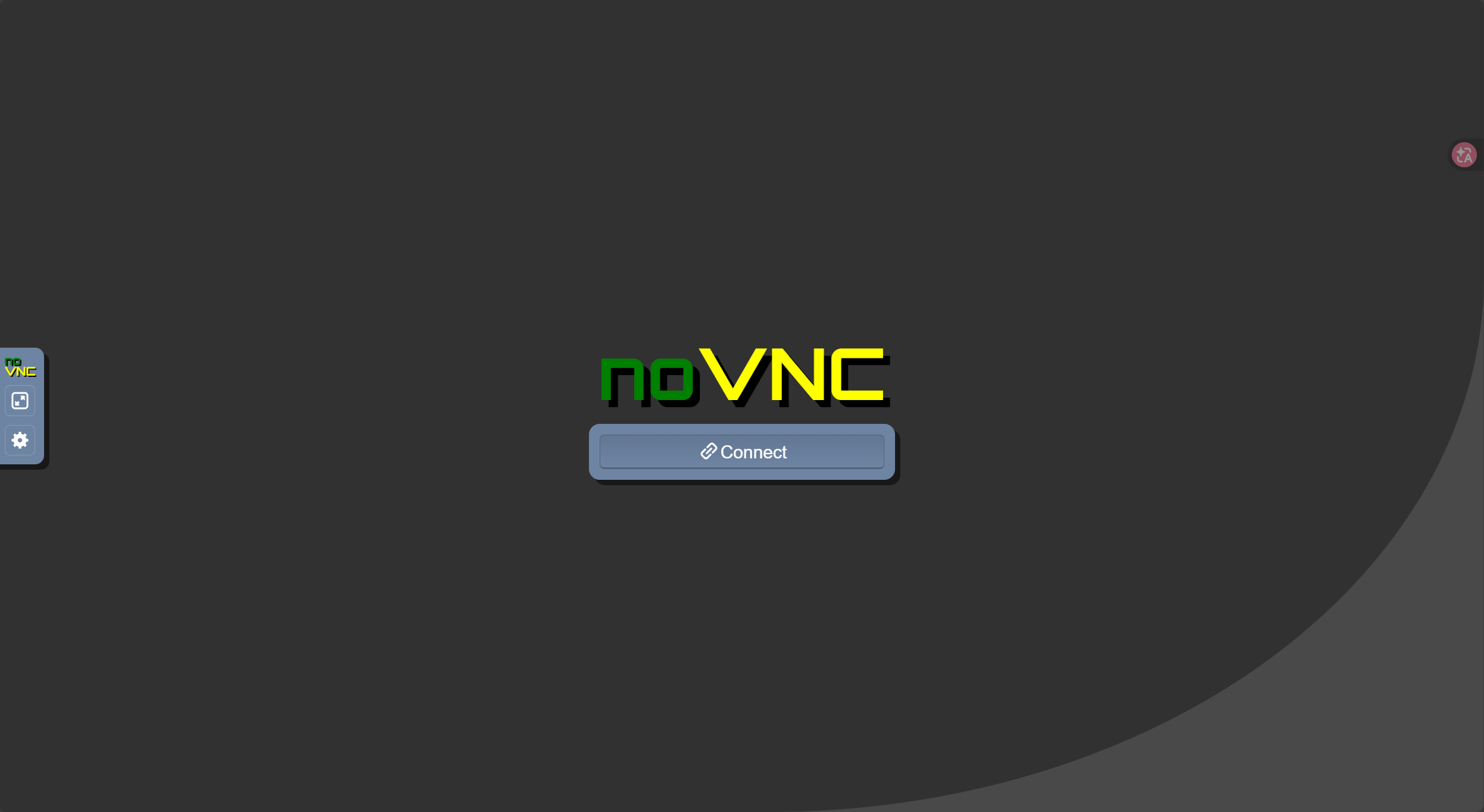
Click Connect to enter the system installation interface.
After the installation is complete, return to the OpenWrt terminal, press Ctrl+C on the previously executed qemu-system-x86_64 command to terminate the virtual machine.
Test using the normal boot command (which is equivalent to removing the installation image):
qemu-system-x86_64 \
  -enable-kvm \
  -cpu host \
  -m 12G \
  -smp 3 \
  -drive file=/appdata/vm/vm-main/debian.qcow2,if=virtio \
  -netdev bridge,id=net0,br=br-lan \
  -device virtio-net-pci,netdev=net0 \
  -vnc :1 \
  -monitor stdio
The difference lies in the removal of these two lines:
  -cdrom /appdata/vm/debian-13.3.0-amd64-DVD-1.iso \
  -boot order=dc \
After booting, you can see through VNC that the system starts normally, indicating everything is working correctly. At this point, you can configure a static IP (recommended) and check whether /etc/resolv.conf is correctly configured with the OpenWrt gateway address as the DNS server. For example, in this article, it is nameserver 192.168.16.1. Of course, you can also choose not to configure a static IP and instead access the dynamic IP address obtained via DHCP using the .landomain name.
Once configuration is complete, use Ctrl+C to terminate the virtual machine.
Next, configure the startup command as a service:
Create the file /etc/init.d/vm-main:
#!/bin/sh /etc/rc.common

START=99
STOP=10

VM_NAME="vm-main"
QEMU_CMD="qemu-system-x86_64"
VM_ARGS="-enable-kvm -cpu host -m 12G -smp 3 -drive file=/appdata/vm/vm-main/debian.qcow2,if=virtio -netdev bridge,id=net0,br=br-lan -device virtio-net-pci,netdev=net0 -vnc :1 -daemonize -pidfile /var/run/qemu-vm.pid"

start() {
    echo "Starting $VM_NAME..."
    sleep 5

    if [ -f /var/run/qemu-vm.pid ]; then
        if kill -0 $(cat /var/run/qemu-vm.pid) 2>/dev/null; then
            echo "$VM_NAME is already running."
            return 0
        fi
    fi

    $QEMU_CMD $VM_ARGS
    echo "$VM_NAME started."
}

stop() {
    echo "Stopping $VM_NAME..."
    if [ -f /var/run/qemu-vm.pid ]; then
        kill $(cat /var/run/qemu-vm.pid) 2>/dev/null
        rm -f /var/run/qemu-vm.pid
        echo "$VM_NAME stopped."
    else
        echo "PID file not found. Trying to kill by process name..."
        killall qemu-system-x86_64 2>/dev/null
    fi
}

restart() {
    stop
    sleep 2
    start
}
Grant execution permissions:
sudo chmod +x /etc/init.d/vm-main
Configure auto-start at boot:
sudo service vm-main enable
Start the virtual machine service:
sudo service vm-main start
Check the virtual machine process:
sudo ps | grep qemu
You can see the virtual machine running normally:
24456 root 12.4g S qemu-system-x86_64 -enable-kvm -cpu ...
26616 root  1144 S grep qemu
All configuration work is now complete. Next, you can use the IP address configured earlier or the .lan domain name to access the KVM virtual machine.